
Device Groups are collections of log forwarding devices. You can associate a single device to multiple device groups. To view details of each device group, click the Details icon under Actions.
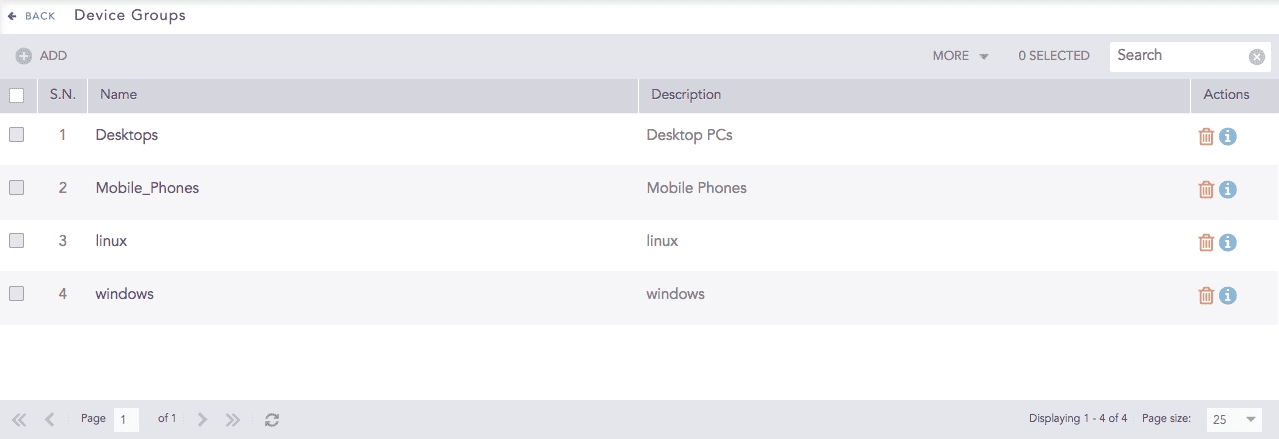
Device Groups
Use the in command in Search to look for the log messages from devices in a device group. Ensure the device group name is converted to uppercase, and use underscores between words.
Example: To look for the log messages from the devices in the device group linux, use the query device_ip in DG_LINUX.
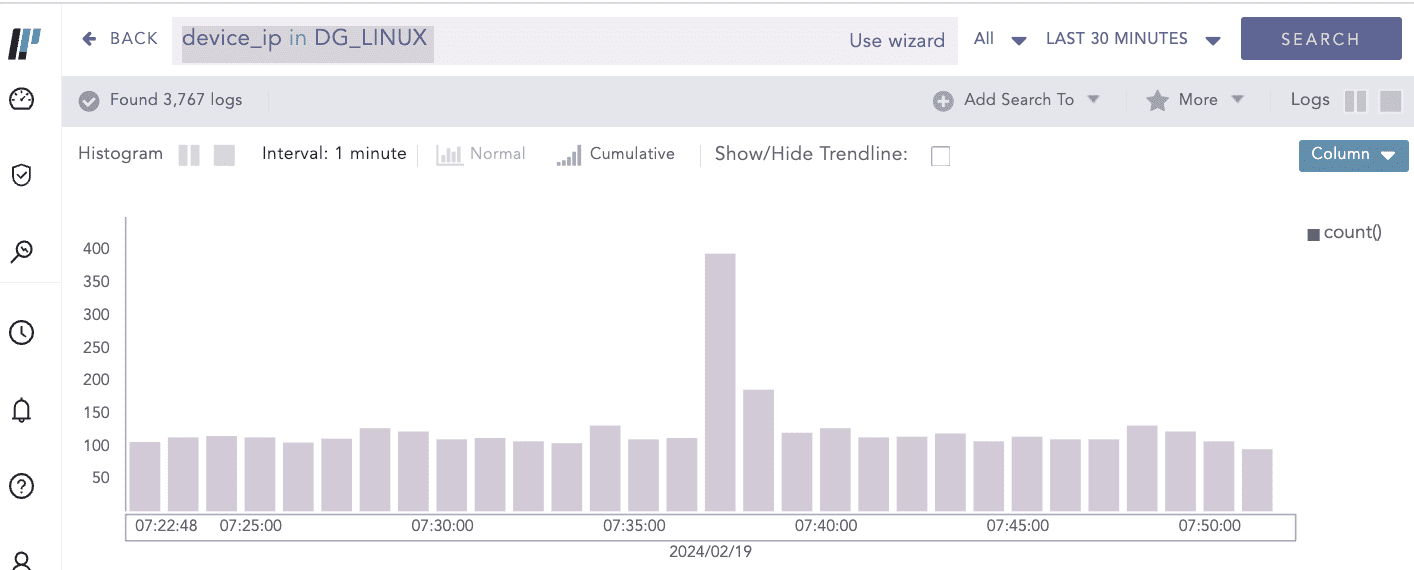
Search Device in Device Groups
Go to Settings >> Configuration from the navigation bar and click Device Groups.
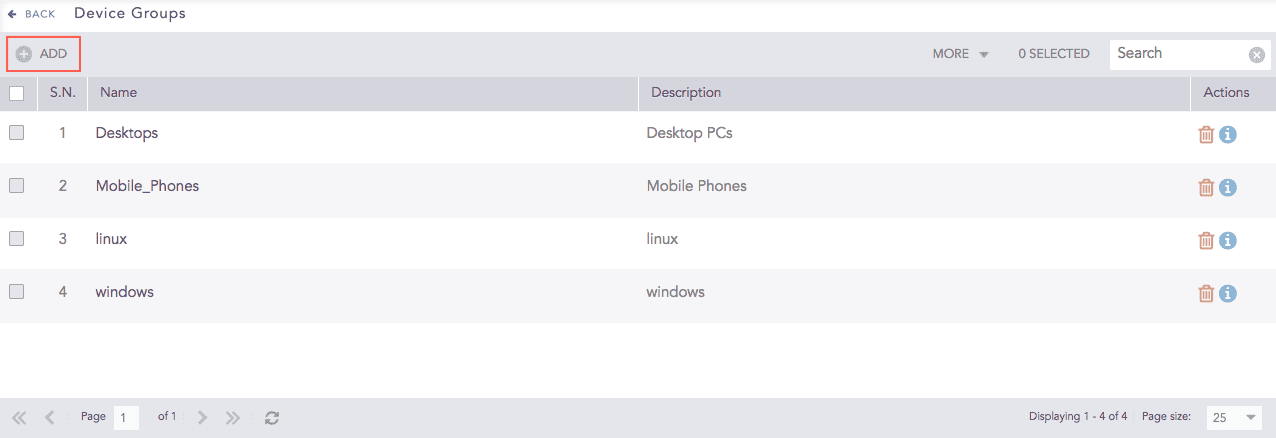
Device Groups
Click ADD.
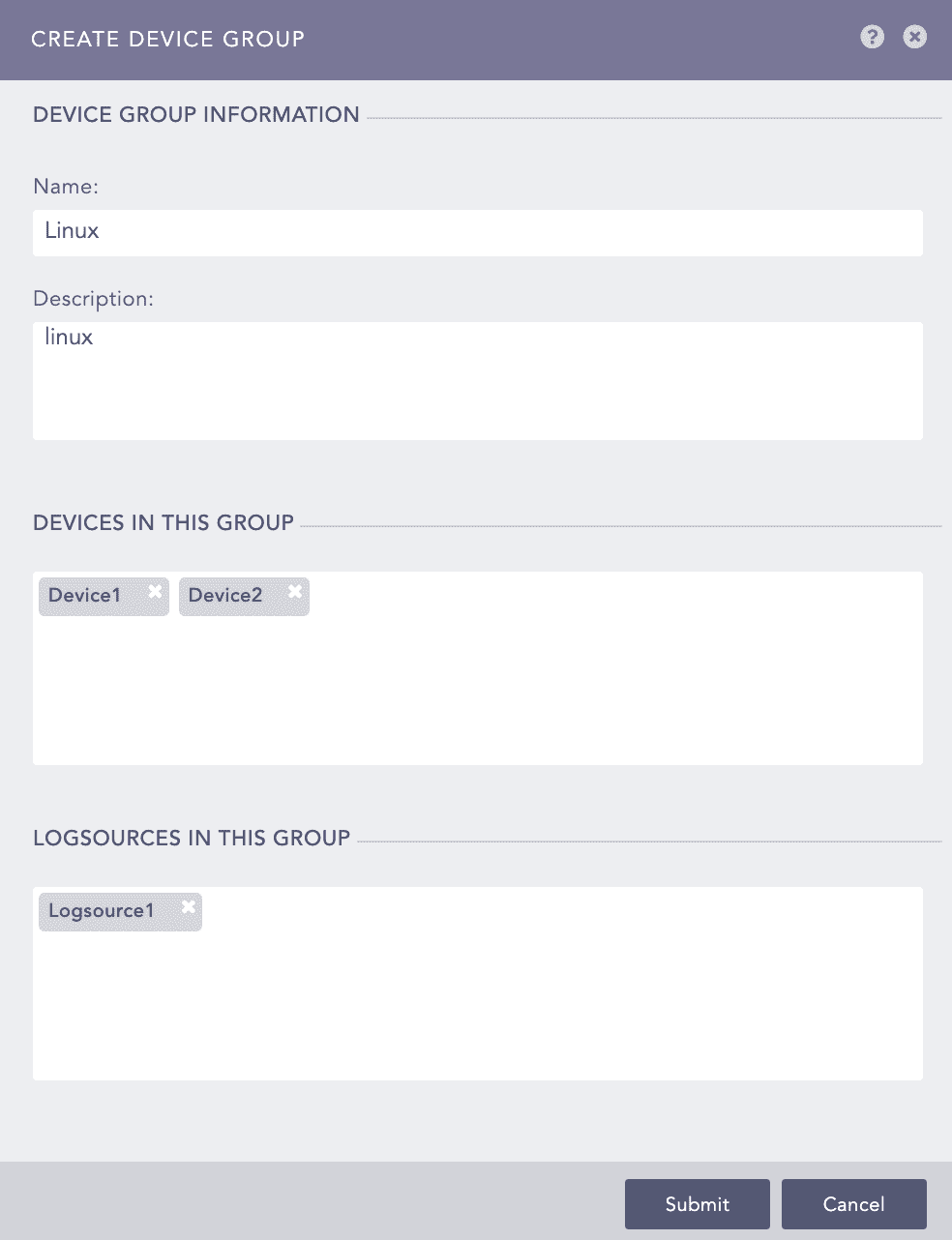
Addition of a Device Groups
Enter a Name and Description.
Add devices in DEVICES IN THIS GROUP.
Add log sources in LOGSOURCES IN THIS GROUP.
Click Submit.
Go to Settings >> Configuration from the navigation bar and click Device Groups.
Click the Name of the required device group.
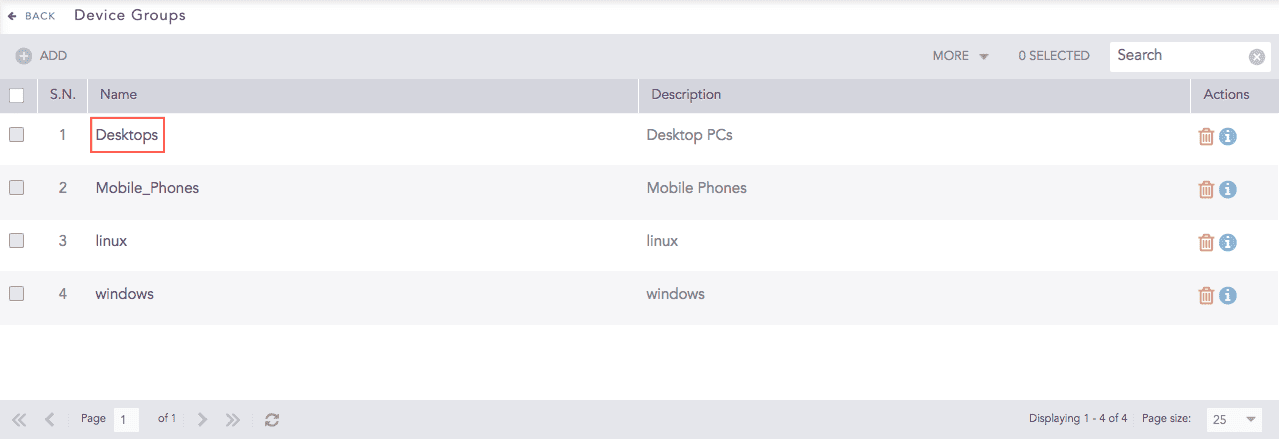
Device Groups
Update the information and click Submit.
Before deleting a device group, make sure that the group is empty and it does not have any devices associated with it.
Go to Settings >> Configuration from the navigation bar and click Device Groups.
Click the Delete icon under Actions.
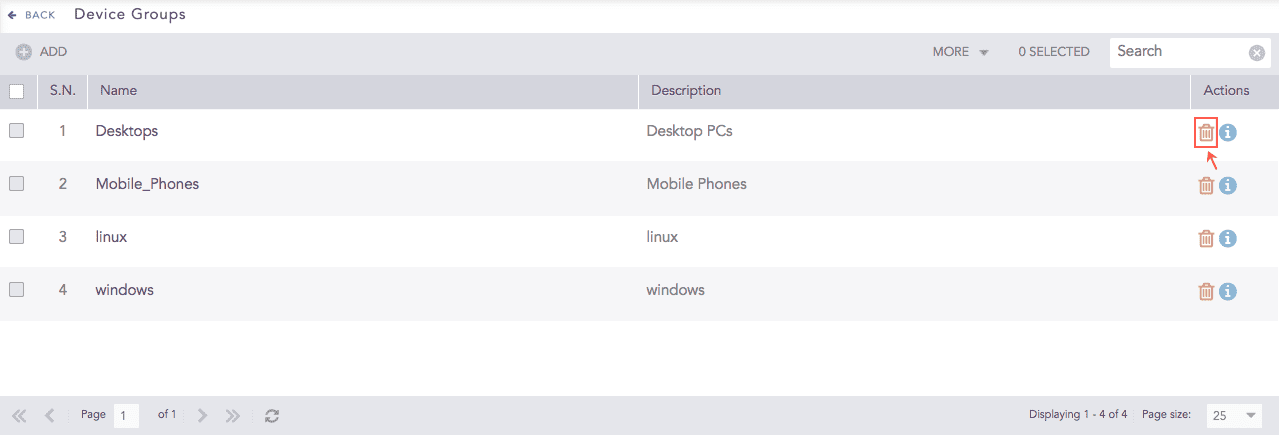
Device Groups
To delete multiple device groups, select the groups. Click More and choose Delete Selected.
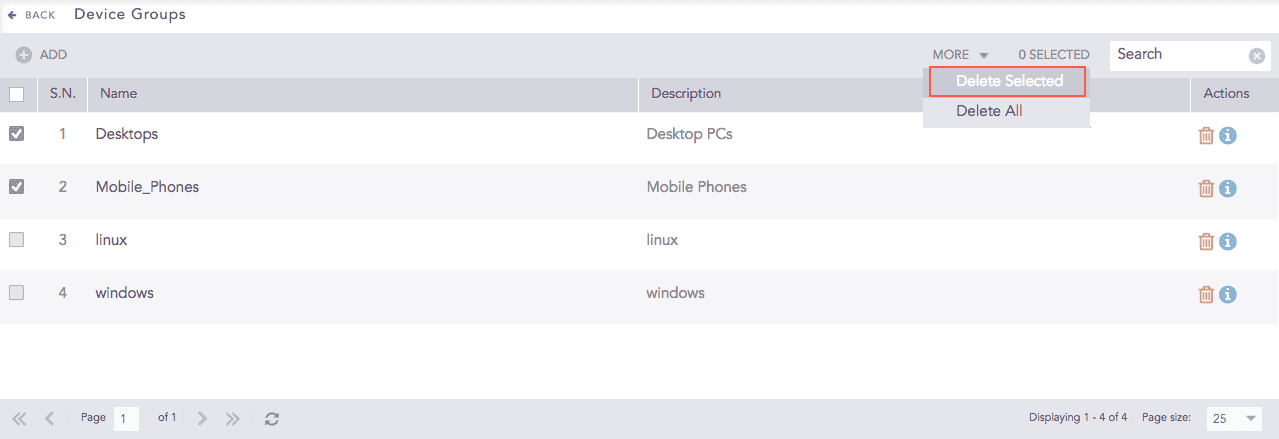
Device Groups
To delete all the device groups, click More and select Delete All.
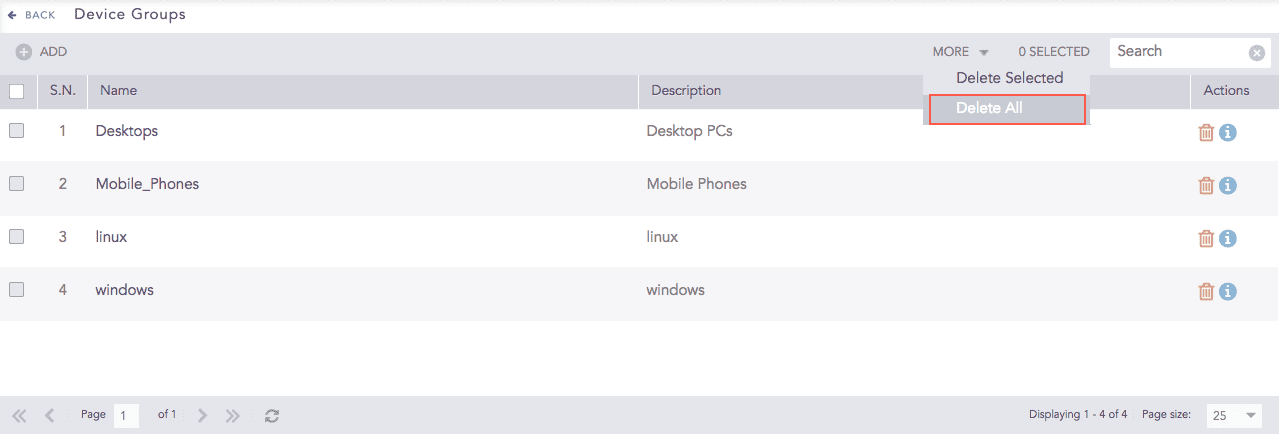
Device Groups
Click Yes to confirm deletion.